2.1 Obtaining the program: the release archive and versions
nlmx reaches you as a ready-to-run executable, supplied in a release archive for your platform. This section describes what the archive contains, how to check that what you downloaded is what was published, and how to read the program's own statement of what it is.
2.1.1 Versions and archive names
Versions follow semantic versioning, MAJOR.MINOR.PATCH (for example 4.2.1): a major version changes settings or
outputs in a way that can break an existing analysis, a minor version adds a command, an option or a changed default,
and a patch version fixes a fault or changes only documentation. Every change to the program is a release with a new
number (Section 2.5), so a version number identifies exactly one program.
| Archive | Name | Contains | Use |
|---|---|---|---|
| Release archive | nlmx-<version>-<platform>.zip (Windows) or .tar.gz (Linux, macOS) |
the executable for one platform, with the licence | unpack it and run the executable (Section 2.2) |
Releases are provided for Windows (x86-64), Linux (x86-64 and ARM) and macOS (Intel and Apple silicon). Use the archive that matches your computer. New versions are announced at the address printed by every build (https://hyperpkpd.com).
2.1.2 Verifying a download
A checksum shows that the file you hold is the file that was published. When a SHA256SUMS file accompanies the download,
compare the SHA-256 of the archive with the published value.
On Linux and macOS, with the SHA256SUMS file in the same folder as the archive:
sha256sum -c SHA256SUMS            # Linux
shasum -a 256 -c SHA256SUMS        # macOS
nlmx-<version>-<platform>.tar.gz: OK
On Windows PowerShell:
Get-FileHash .\nlmx-<version>-<platform>.zip -Algorithm SHA256
and compare the printed hash with the one in SHA256SUMS by eye.
Record what you installed. For a controlled installation, write down two things: the version, and the SHA-256 of the archive or of the executable. Section 2.5 explains why you also keep the executable.
2.1.3 Reading nlmx version
The command nlmx version (and the option --version, which works after any command, as in nlmx vpc --version) prints
a banner. It is the first thing to run after an installation, because it answers two questions: which program is
this, and how old is it.
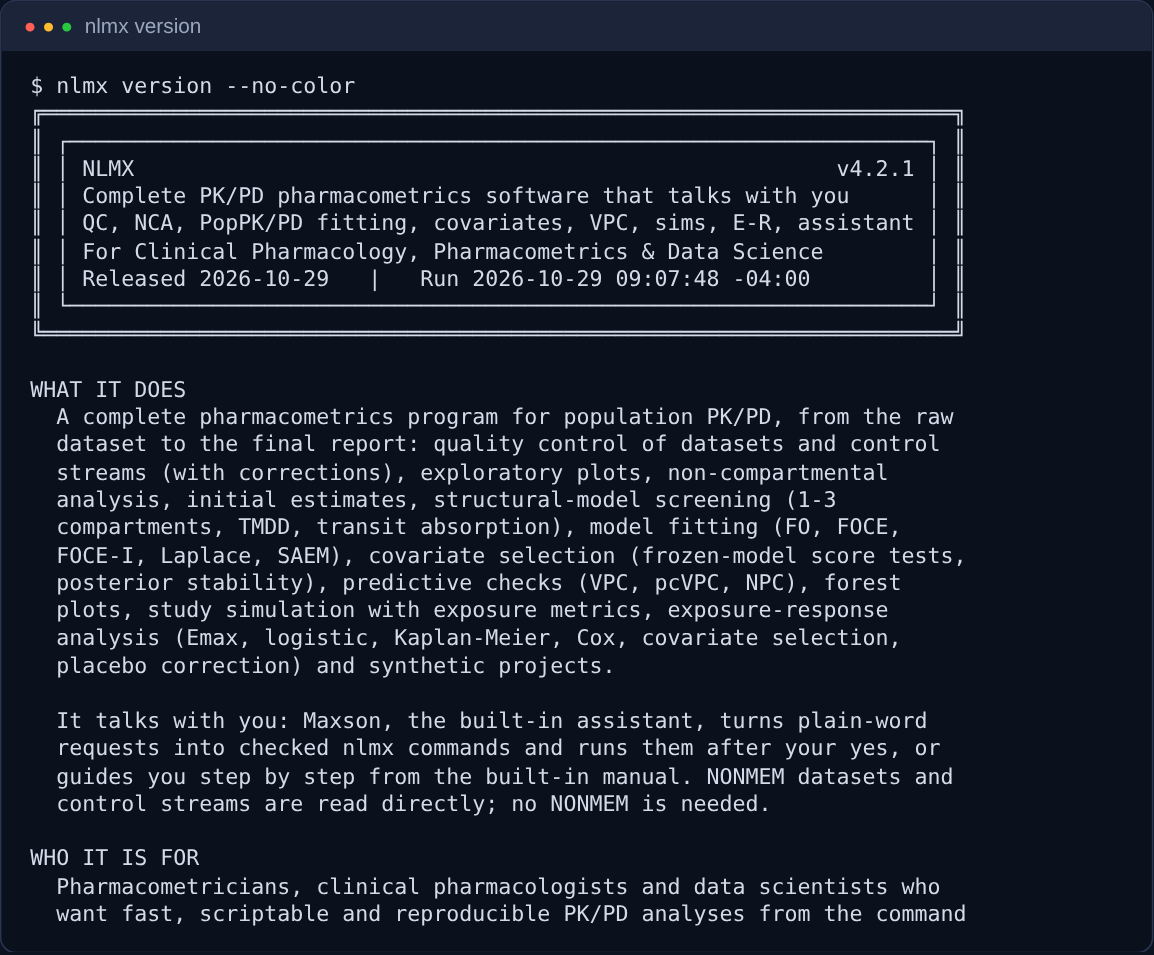
The banner has five parts.
| Part | Example from this book's recording | What it tells you |
|---|---|---|
| Frame, line 1 | NLMX … v4.2.1 |
the program and its version |
| Frame, last line | Released 2026-10-29 | Run 2026-10-29 09:07:48 -04:00 |
the release date of the version, and the date and local time of this run |
WHAT IT DOES, WHO IT IS FOR |
text | the scope of the program, in the author's words |
COMMANDS |
20 lines | the commands of this build, each with a one-line description (Table 1.2.1 lists all 22; version is not listed, and validate appears on the line of inspect) |
BUILD |
nlmx 4.2.1 (released 2026-10-29), the licence line, No NONMEM needed; runs offline, the assistant's model included. |
the version again, the licence, and a reminder of two promises |
Colour is used on a terminal only. With --no-color, with the environment variable NO_COLOR, or when the output goes to
a file or a pipe, the banner is plain text, which is the form to paste into a validation record.
The release date is the date of the version; the run date is the clock of your computer.
2.1.4 Which version do the examples show?
The examples in this book were recorded with one version of the program, and the output printed here is the output of that run. Where behaviour is tied to a version, the text says since X.Y.Z. If your version is older, check the changelog (Section 2.5) for what has changed; if it is newer, the changelog is where a changed default would be announced.