The run Command
run masks one dataset. This page takes a run command apart, shows a complete annotated run, explains
column_report.txt (the quickest way to check that your columns were understood) and lists the options by purpose, with
the page where each group is described in detail.
1. Anatomy of a command
data-obfuscator run --input pk_study.csv --output ./masked --level 2 --seed 2026
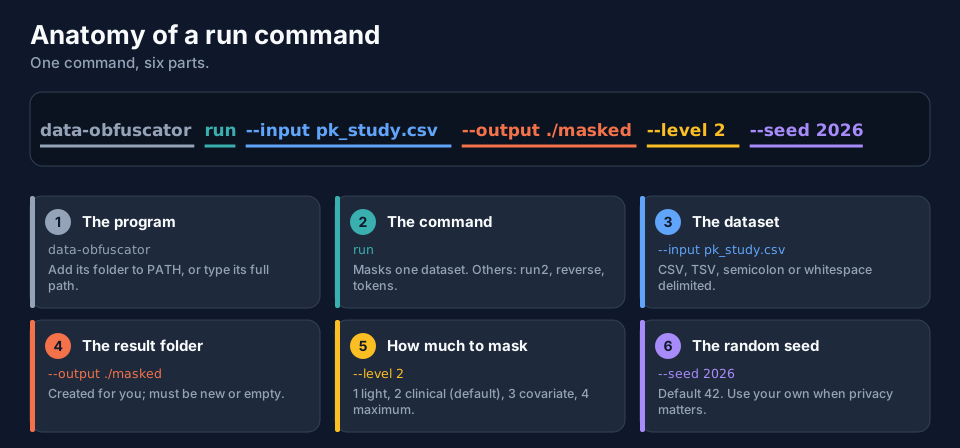
Only --input and --output are required; everything else has a default. The shortest useful command is therefore:
data-obfuscator run --input pk_study.csv --output ./masked
which means level 2, seed 42, sequential codes, a date shift drawn from 1–100 days, all columns kept.
Short forms exist for the most common options: -i (--input), -o (--output), -l (--level), -c (--config), -v (--verbose).
2. A complete run, annotated
The recorded output of the command above, with the eight stages numbered.
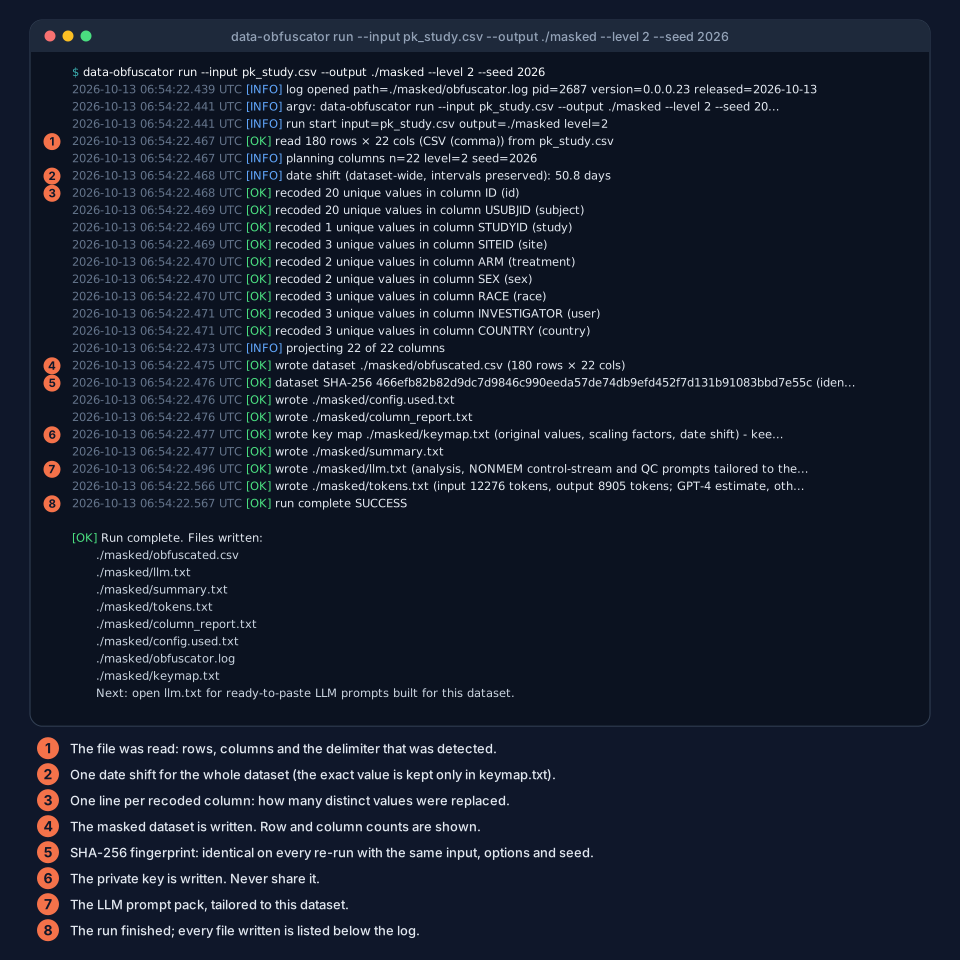
Three things to notice:
- The date shift is printed (
50.8 days) but the exact value is kept only inkeymap.txtandsummary.txt; do not paste the terminal output to people you do not trust with the key. - The SHA-256 fingerprint is the proof of reproducibility: run the same command again (in a new folder) and the fingerprint is identical.
- The list at the end is every file written. Two are meant to be shared (
obfuscated.csv,llm.txt).
3. column_report.txt: did the program understand my columns?
Open column_report.txt after the first run of any new dataset. It lists every column with its role and the
operations applied.
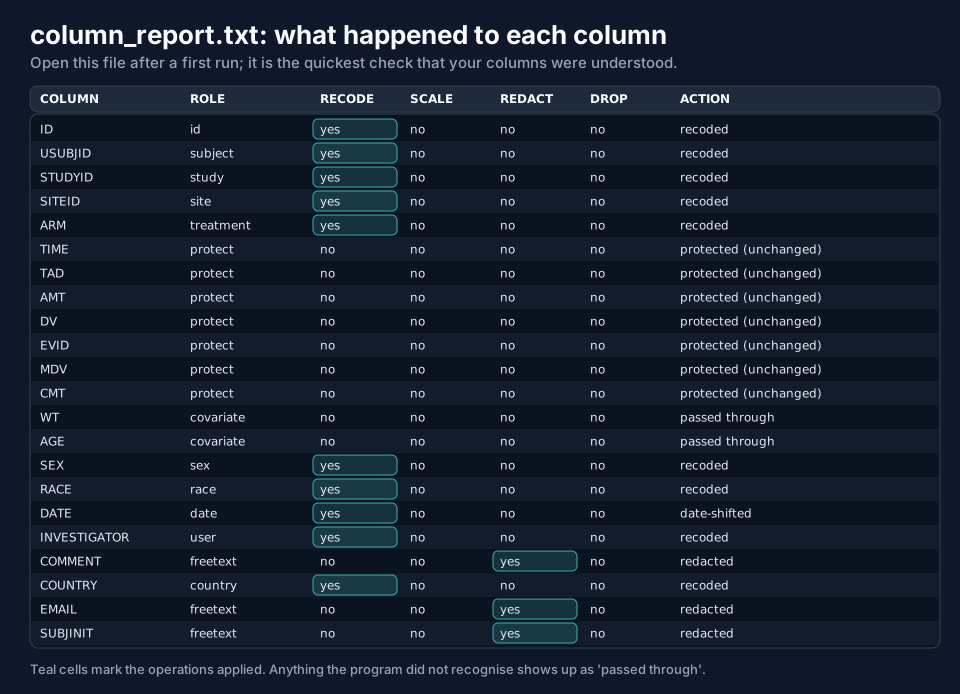
How to read it:
| Field | Values | Meaning |
|---|---|---|
| ROLE | id, subject, study, site, treatment, user, sex, race, country, date, freetext, covariate, protect, ... |
what the program decided the column is |
| RECODE, SCALE, REDACT, DROP | yes / no |
the operations applied at this level |
| ACTION | recoded, date-shifted, redacted, protected (unchanged), passed through, ... |
the net effect |
Anything marked passed through is copied unchanged. If a passed-through column identifies something (a lab number,
a site name), name it with a role option or --sensitive (page Columns and Roles), or drop it. The program also warns about
unrecognised text columns: text column(s) not recognised and passed through UNCHANGED: LABNO.
You can download the file: txtexample-column_report-level2.txt.
4. Protection against overwriting
The program never silently replaces earlier results. If the output folder already holds files, the run stops before writing anything.
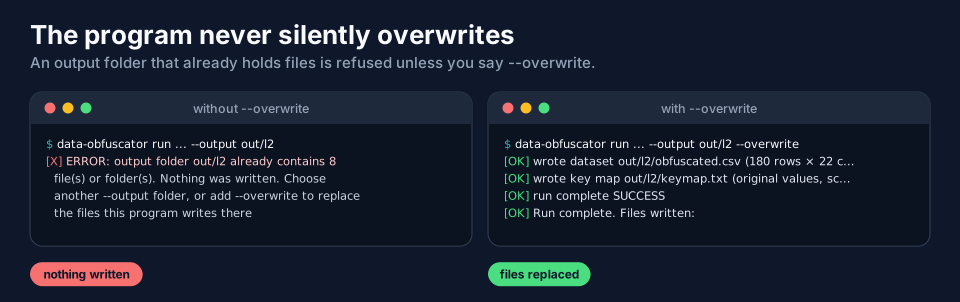
--overwrite replaces the files with the same names that the program writes; other files in the folder are left
alone, and a warning tells you how many files were already there.
5. The options of run, by purpose
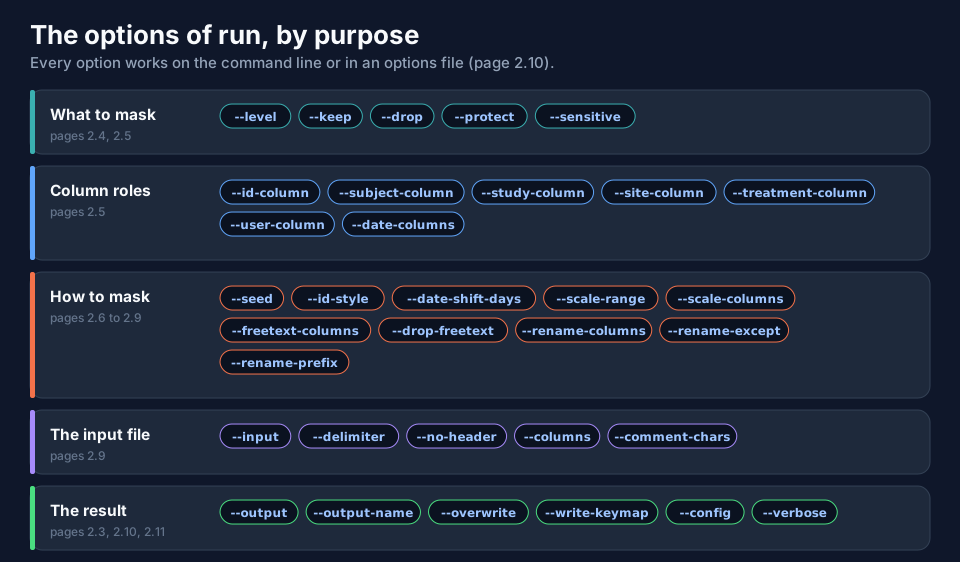
| Group | Options | Page |
|---|---|---|
| What to mask | --level, --keep, --drop, --protect, --sensitive |
Masking Levels, Columns and Roles |
| Column roles | --id-column, --subject-column, --study-column, --site-column, --treatment-column, --user-column, --date-columns |
Columns and Roles |
| How to mask | --seed, --id-style, --date-shift-days, --scale-range, --scale-columns, --freetext-columns, --drop-freetext, --rename-columns, --rename-except, --rename-prefix |
IDs and Seeds, Dates and Free Text, Scaling Covariates, Renaming and File Formats |
| The input file | --input, --delimiter, --no-header, --columns, --comment-chars |
Renaming and File Formats |
| The result | --output, --output-name, --overwrite, --write-keymap, --config, --verbose |
this page, Options Files, Output Files and Keymaps |
Options that belong to this page
| Option | Default | What it does |
|---|---|---|
--input FILE |
required | the dataset |
--output DIR |
required | the result folder; created if missing; must be new or empty unless --overwrite |
--output-name NAME |
obfuscated.csv (.dat or .tsv follow the input) |
the file name of the masked dataset: --output-name study_masked.csv |
--overwrite |
off | allow a folder that already holds files |
--write-keymap [BOOL] |
true | write keymap.txt; --write-keymap false switches it off and then nothing can ever be restored |
--config FILE |
none | read options from a file (page Options Files) |
-v, --verbose |
off | extra debugging lines in the log |
6. Three quick recipes
| Goal | Command |
|---|---|
| Share inside the team, identifiers hidden | data-obfuscator run --input pk_study.csv --output ./m1 --level 1 --seed 2026 |
| Share outside, labels, dates and free text hidden | data-obfuscator run --input pk_study.csv --output ./m2 --level 2 --seed 2026 |
| Covariates hidden too, own file name | data-obfuscator run --input pk_study.csv --output ./m3 --level 3 --seed 2026 --output-name study_masked.csv |
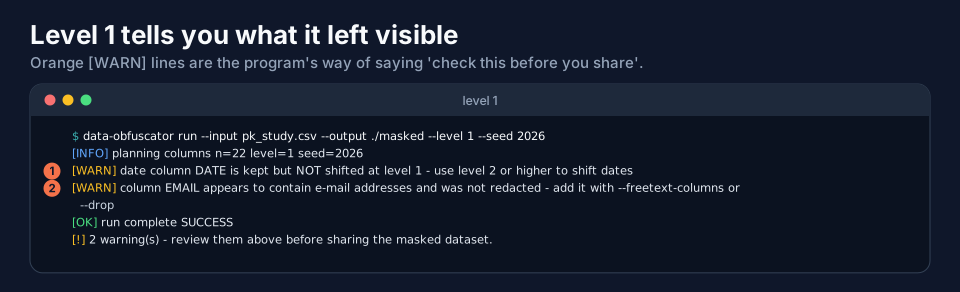
Level 1 on the example prints two warnings (a date column that was not shifted, an e-mail column that was not redacted); that is the program telling you what level 1 leaves visible.
7. Exit codes
The program ends with exit code 0 after a successful run, and with 1 when it stopped with an error. Scripts can
rely on that: data-obfuscator run ... && echo masked.
Next
Masking Levels shows what each of the four levels does to the same rows.