Getting Started
From nothing to a first masked dataset in four steps. All terminal output on this page is real: it was recorded by running the program on the example dataset, which you can download to follow along: csvexample-pk_study.csv.
1. What the program is
data-obfuscator is a single command-line executable. It needs no installer, no Python, R or Java, and it has no
network code: your data are read from a file on your computer and the results are written to a folder on your
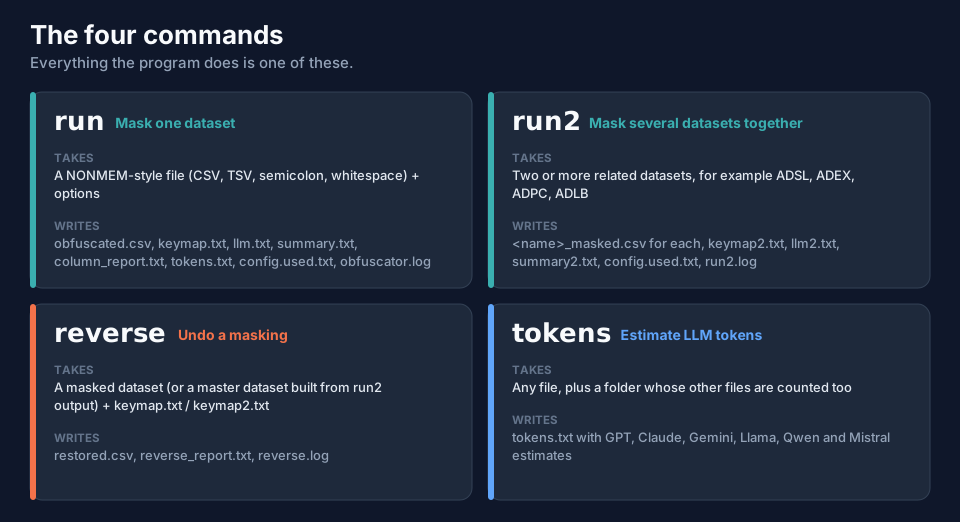
computer. It has four commands.
| Command | Use it to | Page |
|---|---|---|
run |
mask one dataset | The run Command |
run2 |
mask several related datasets together | Masking Several Datasets: run2 |
reverse |
undo a masking | Restoring Data: reverse and Restoring a run2 Master Dataset |
tokens |
count tokens | LLM Prompts and Tokens |
2. Install
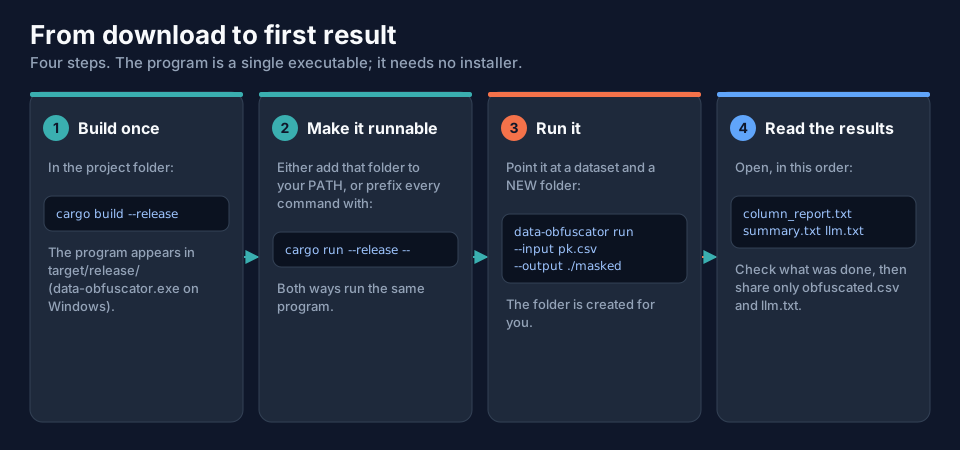
In the project folder, with the Rust toolchain installed:
cargo build --release
The program is then target/release/data-obfuscator (data-obfuscator.exe on Windows). Either add that folder to your
PATH, or prefix every command with cargo run --release --, or install it once with cargo install --path ..
On Windows PowerShell the binary is .\target\release\data-obfuscator.exe; in PowerShell, put lists that contain commas
in quotes (--drop "EMAIL,COMMENT").
Version numbers. Every build that follows a change to the program, its tests or its documentation raises the last number of the version by one, automatically. See Version & Purpose.
3. Check that it works
Two commands that change nothing:
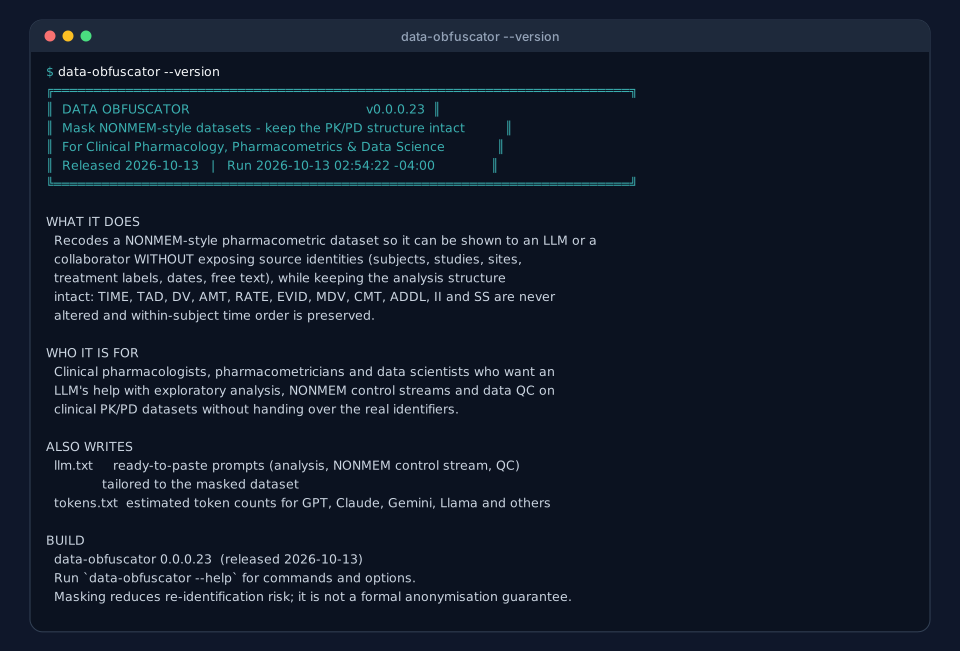
data-obfuscator --version
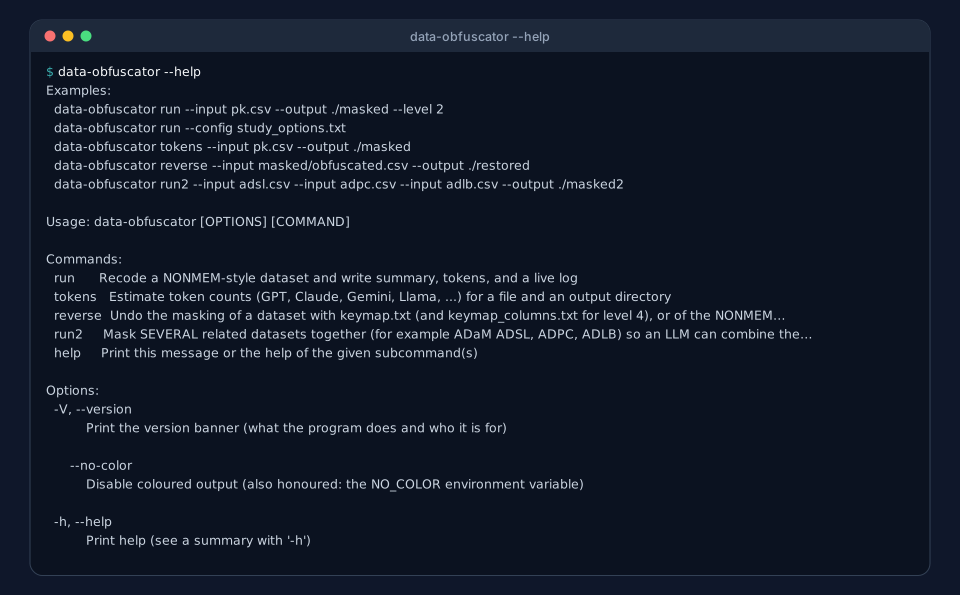
data-obfuscator --help
--version prints a banner that says what the program does, who it is for and the build number. --help lists the
commands and their options; every command has its own help too (data-obfuscator run --help, data-obfuscator reverse --help, and so on).
There are three global options:
| Option | What it does |
|---|---|
-V, --version |
the version banner |
-h, --help |
help (with -h a short summary, with --help the long one); also available after any command |
--no-color |
plain text without colours (the NO_COLOR environment variable does the same). Use it when you save the output to a file. |
4. Your first run
Put the dataset in the current folder and give run an input file and a new folder for the results:
data-obfuscator run --input pk_study.csv --output ./masked --level 2 --seed 2026
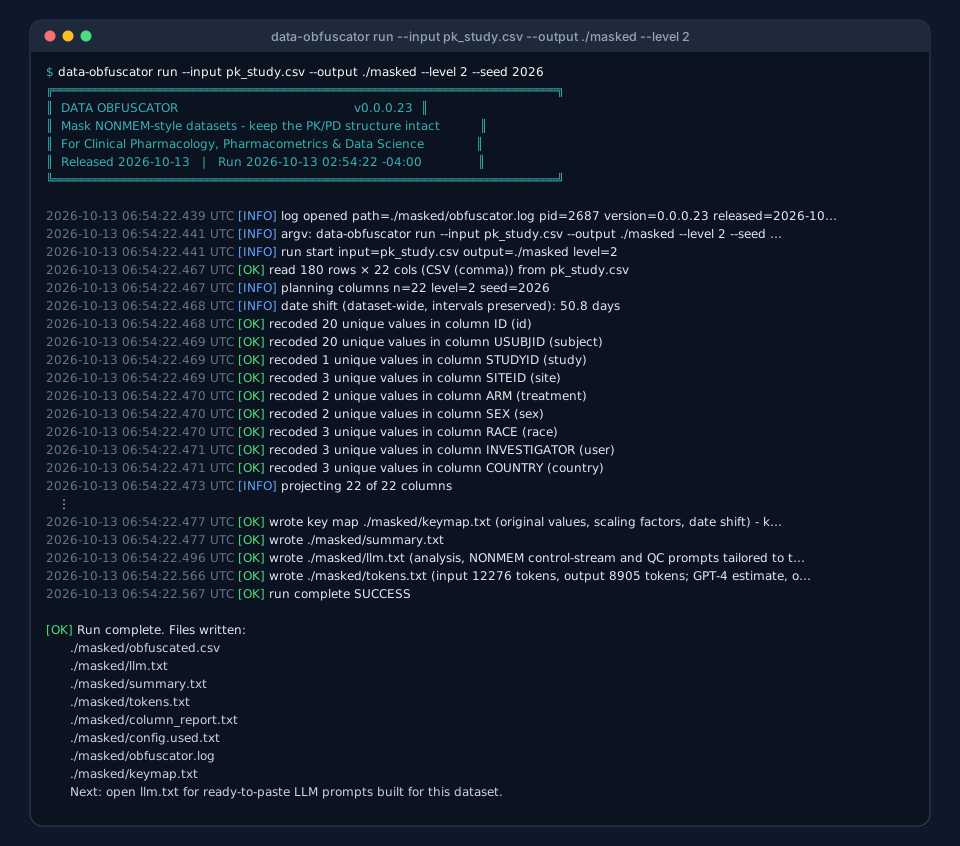
The output is a list of what was done, one line per step. The tags tell you how to read it:
| Tag | Meaning |
|---|---|
[OK] |
a step succeeded |
[INFO] |
a fact (the date shift, the number of columns) |
[WARN] |
something you should look at: the run continues |
[ERROR] / [X] |
the run stopped (nothing is written when the cause is a bad option) |
The same lines, with timestamps, go to obfuscator.log in the output folder.
5. Read the results, in this order
- The warnings printed on the terminal. At level 2 the example dataset produces none; at level 1 it warns that the
DATEcolumn was not shifted and thatEMAILlooks like e-mail addresses that were not redacted. column_report.txt: what happened to every column (page The run Command).summary.txt: the run in one page: level, seed, date shift, integrity checks.llm.txt: the prompts to paste into an LLM together withobfuscated.csv.
Then share only obfuscated.csv and llm.txt. keymap.txt is the key that undoes the masking: keep it private.
6. Messages you may meet
Errors that come from a bad option stop the run before anything is written, so there is nothing to clean up.
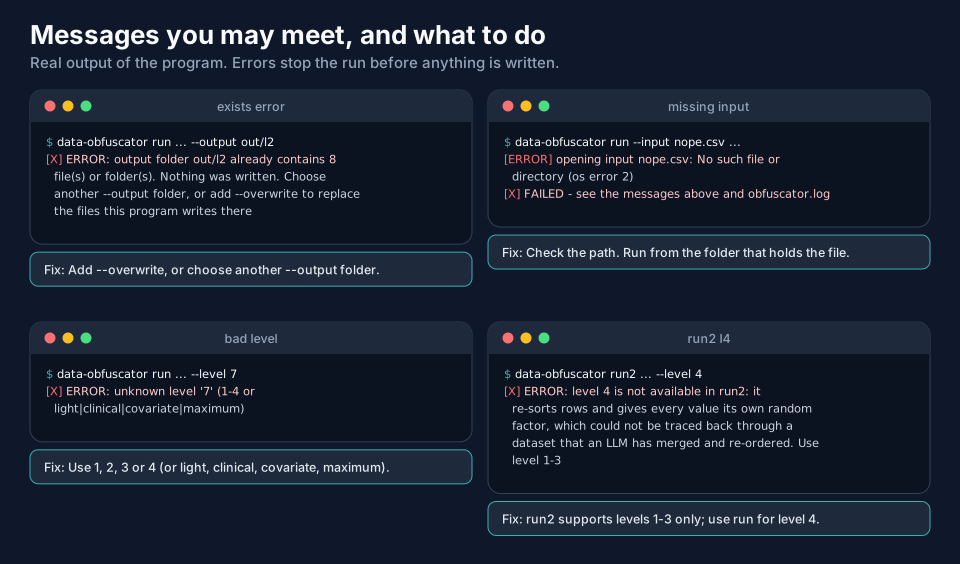
| Message begins | Cause | Fix |
|---|---|---|
output folder ... already contains N file(s) |
the output folder is not empty | choose a new folder, or add --overwrite |
opening input nope.csv: No such file |
wrong path | run from the folder that holds the file, or give the full path |
unknown level '7' |
level not in 1–4 | use 1, 2, 3, 4 or light, clinical, covariate, maximum |
level 4 is not available in run2 |
run2 supports levels 1–3 |
use run for level 4 |
Two things that are not errors: --drop NOSUCHCOL (a column that does not exist is silently ignored), and a
warning such as [WARN] date column DATE is kept but NOT shifted at level 1, which tells you the level you chose leaves
something visible.
Next
Continue with The run Command, which takes every part of a run command apart.